
12
December
Instant Call Requests: Real-Time Customer Engagement
December 12, 2025
Enable instant call requests to allow customers to request immediate face-to-face sessions with you in a matter of minutes.
What Are Instant Chat Requests?
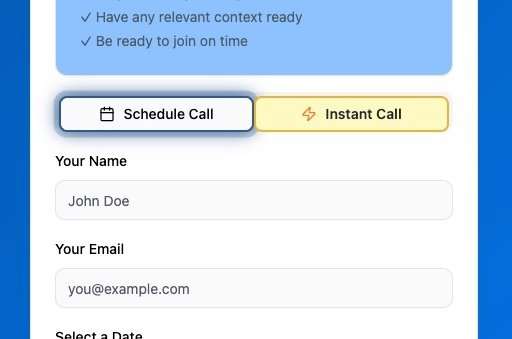
Instant call requests allow customers to request an immediate video call with you without scheduling in advance. This feature is perfect for urgent consultations, quick questions, or spontaneous sessions.
 Enabling Instant Calls
- Go to Dashboard → Settings → Instant Call Settings
- Toggle “Enable Instant Calls” to ON
- Set your response time window (default: 5 minutes)
- Configure your daily limit
- Click “Save Settings”
How It Works
| For You (Service Provider) | For Your Customers |
|---|---|
| Customer submits an instant call request | Customer visits your booking page |
| You receive a notification on your dashboard | Clicks “Request Instant Call” |
| You have your configured time window to accept or decline | Enters their contact information |
| If accepted, a video room link is instantly generated | Waits for your response (with countdown timer) |
| Both parties join the call immediately | Receives video link if you accept |
Managing Incoming Requests
When you receive an instant call request:
- Accept: Creates the call and sends links to both parties
- Decline: Notifies the customer you’re unavailable
- Ignore: Request expires automatically after your response window
Best Practices
- Set Realistic Response Times: Don’t promise 2-minute responses if you check the dashboard every 10 minutes
- Use Daily Limits: Protect yourself from burnout with reasonable daily caps
- Clear Availability: Only enable instant calls when you’re truly available
- Quick Check-ins: Monitor your dashboard regularly when instant calls are enabled
Notification Settings
To ensure you never miss a request:
- Make sure you have email notifications enabled on every device you plan to respond to video chat requests on
- Enable browser notifications for your dashboard
- Keep your dashboard open during availability hours